

If you purchased an SSL certificate as a standalone product or as an addon, you may need to manually complete elements of the process in your client area. After purchasing an SSL certificate you may receive an email stating that SSL Certificate Configuration is Required.
If you receive this email or see Awaiting Configuration in your Manage SSL Certificates page, follow these steps:
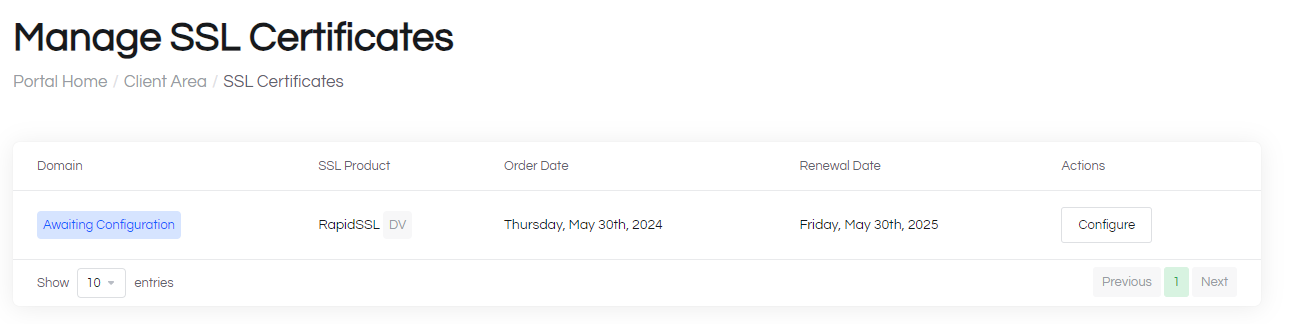
1. From your Enviroweb dashboard, click Services > SSL Certificates from the left hand menu
2. Click Configure on your SSL certificate that requires attention
3. Fill out the server information, for this example, select Server Type as cPanel / WHM from the list
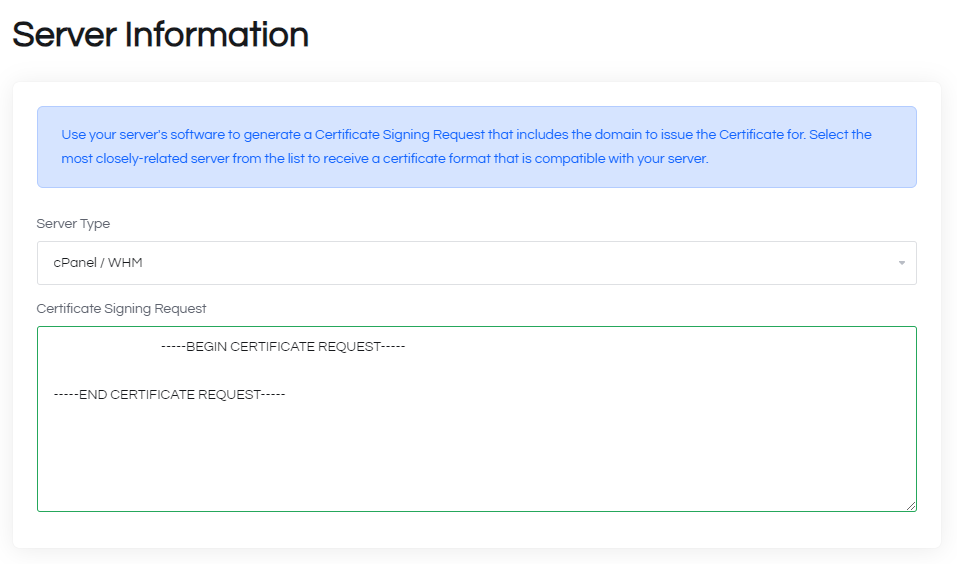
4. Next, we need to create a Certificate Signing Request. To do this, log into your cPanel from your Enviroweb dashboard.
5. Scroll down the control panel until you reach Security and click SSL/TLS
6. On the SSL/TLS page, click the link under Certificate Signing Requests (CSR)
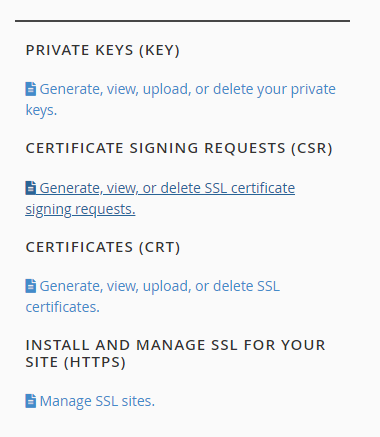
7. Select Generate a new "RSA, 2048-bit" Key from the dropdown, enter the domain you purchased the SSL for and fill out the other required fields.
8. Once you have filled out the required details, click Generate at the bottom of the page
9. Copy the Encoded Certificate Signing Request and paste it in the Certificate Signing Request field back on the Configure SSL Certificate Page
(Ensure this is pasted in the gaps of the provided beginning and end markers.
---Begin Certificate Request---
---End Certificate Request---
10. Fill out the Administrative Contact Information and click Continue
11. Select a validation method, for this example we will be using Email
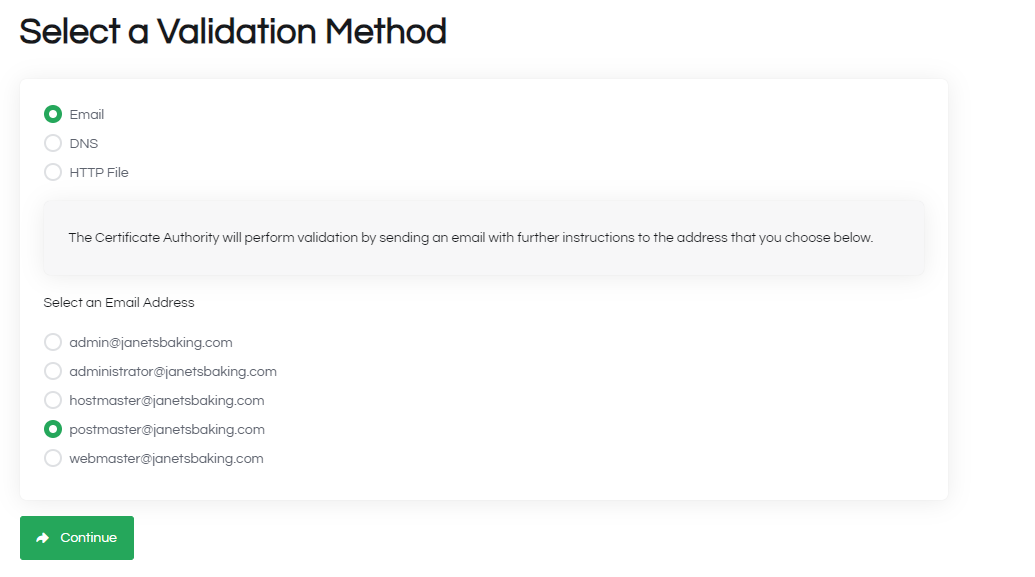
12. Check the email account that you selected as the validation method for the next steps in the process. These will be provided by the certificate authority.
