What is CMS Made Simple?

CMS Made Simple is an open-source content management system (CMS) designed to make it easy to create and manage websites. It offers a simple and intuitive interface, making it ideal for users who want to build and manage their website without needing advanced technical knowledge. With features like template-based design, customizable content, and an easy-to-use admin panel, CMS Made Simple allows for flexible website creation while maintaining a user-friendly experience.
Softaculous helps you install web applications very easily. Please, follow the steps below to install CMS Made Simple:
Step 1. Log in to your cPanel account.
Step 2. In the Software section, click on Softaculous Apps Installer.
Step 3. cPanel will redirect you to the Softaculous interface.
Step 4. On the left side, locate the Portal/CMS category. Click on it and then select CMS Made Simple.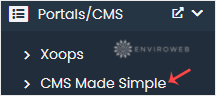
Step 5. Click on Install.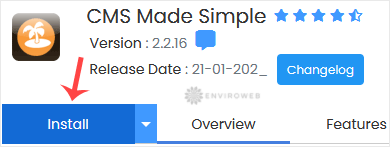
Step 6. Fill in the necessary fields under the Software Setup section:
- Choose Installation URL: Choose the appropriate protocol/domain. If you want to install this in a subdirectory (e.g., example.com/cmsmadesimple), enter the directory name. Leave it blank to install in the root directory (e.g., example.com).
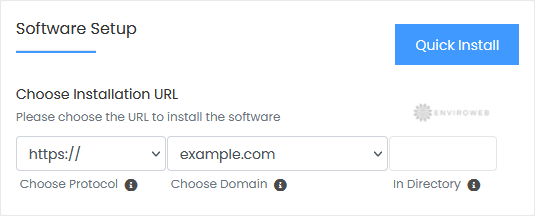
Step 7. Under the Site Settings field, enter the following information:
- Site Name: Enter the name of your website, such as CMS Made Simple.
Step 8. Under the Admin Account field, enter the following information:
- Admin Username: Your new CMS Made Simple username (for security reasons, avoid using "administrator" or "admin").
- Admin Password: Use a strong password.
- Admin Email: Your email address.
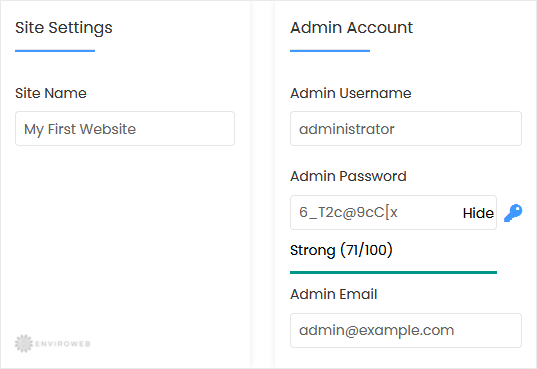
Note: Copy the admin username and password to Notepad. You will need these to access the admin area of your CMS Made Simple website later.
Step 9. Choose Language: You can choose the language for your CMS Made Simple installation. The default language is English.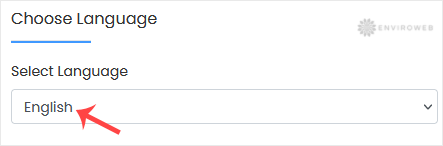
Step 10. Advanced Options: Leave this section as is unless you want to change the database name or enable automated backups. Note that frequent backups may consume a significant amount of disk space.
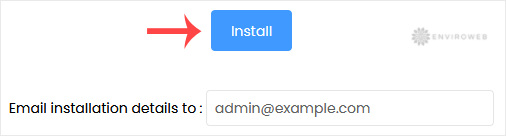
Finally, scroll down to the end of the page and click on Install.