

cPanel includes a built-in File Manager that allows you to manage your website files directly from your browser. This guide will show you how to create both new folders and files using the File Manager interface.
Step 1: Log in to your cPanel account
Access your cPanel account using your login credentials.
Step 2: Open File Manager
In the Files section, click on File Manager.

Step 3: Navigate to your desired directory
Use the sidebar inside File Manager to browse to the folder where you want to create a new file or folder.
Step 4: Click “+Folder”
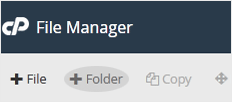
At the top of the File Manager interface, click +Folder.
Step 5: Name and create your folder
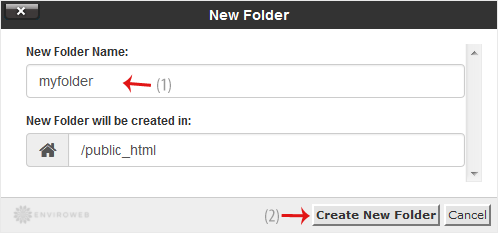
In the New Folder Name field, enter a name like my-folder and click Create New Folder.
How to Create a New File (e.g., myfile.txt)
Step 1: Navigate to the desired directory
Browse to the directory where you want to create the file, just like in the previous steps.
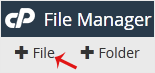
Step 2: Click “+File”
Step 3: Enter the file name
Type in your file name (e.g. myfile.txt) and click Create New File.
