

cPanel includes a built-in File Manager that allows you to view and edit your website’s files directly from your browser — no FTP client needed. This guide will walk you through how to edit files using either the standard or HTML editor.
Step 1: Log in to your cPanel account
Access your cPanel account using your login credentials.
Step 2: Open File Manager
In the Files section, click on File Manager.

Step 3: Navigate to the target file
Use the File Manager's sidebar to browse to the directory where your file is located.
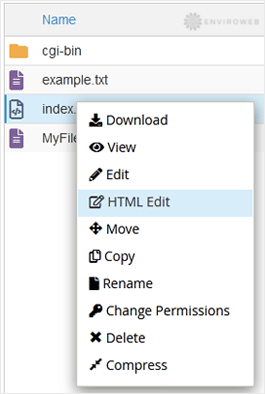
Step 4: Right-click the file and select an editor
Right-click on the file and choose either Edit for plain text or HTML Edit for a visual HTML editor from the context menu.
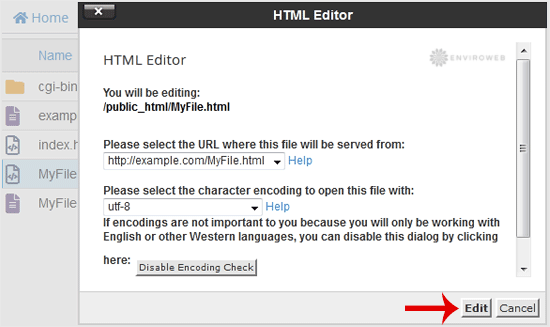
Step 5: Launch the editor
In the editor prompt window, click Edit to begin editing the file.
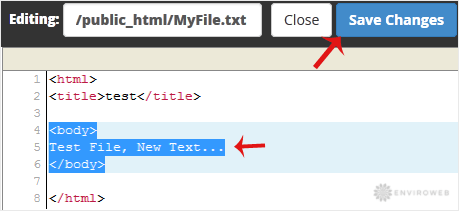
Step 6: Make changes and save
Edit your file as needed, then click on Save Changes in the top-right corner of the editor window.
Your file has been successfully updated and changes are now live on your website.
