

Adding an A Record is a common task in DNS management that allows you to point a domain or subdomain to a specific IP address. This is useful for directing traffic to a web server or connecting subdomains (such as blog.example.com) to third-party services or different servers. In this guide, we’ll walk you through how to add an A Record using the cPanel Zone Editor.
Note: DNS changes may take up to 24 hours to fully propagate across the internet. During this time, your domain or subdomain may not resolve consistently worldwide.
Step 1: Log in to your cPanel account.
Step 2: In the Domains section, click on Zone Editor.
Step 3: Locate the domain you wish to edit. Under the Actions column, click +A Record.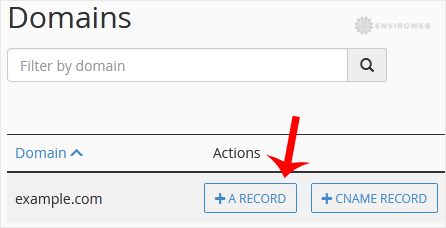
Step 4: In the pop-up box that appears, enter the following information:
- Name: Enter the subdomain prefix you want to use (e.g.,
blog). cPanel will automatically append your domain to createblog.example.com. - Address: Enter the IP address you want this subdomain to point to.
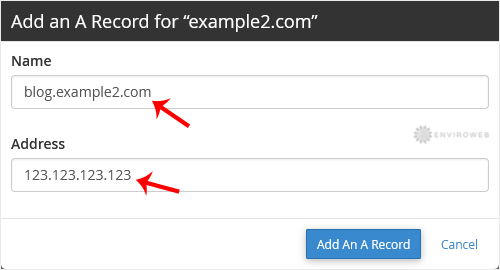
Step 5: Click Add an A Record to save your changes.
That's it — you've successfully added an A Record. You can now access your service or site using the new subdomain once DNS propagation is complete.
