

Creating a full backup of your website ensures you always have a copy of your data in case of accidental changes, migrations, or server issues. This guide explains how to generate and download a complete website backup using the Backup tool in cPanel.
Tip: Full backups include all website files, databases, email accounts, and settings. It's a good practice to create a full backup before making any major changes to your website.
Step 1: Log in to your cPanel account.
Step 2: In the Files section, click on Backup.
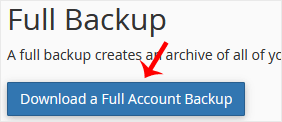
Step 3: Under the Full Backup section, click on Download a Full Website Backup.
Step 4: On the next screen:
- Set the Backup Destination to Home.
- Enter your email address to be notified once the backup is complete.
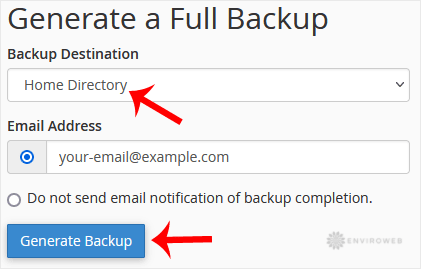
Step 5: Click Generate Backup to begin the process.
Once the backup is finished, you’ll receive a confirmation email. You can then return to the Backup section and download it under Download a Full Account Backup.
