

Creating regular backups of your website is essential to protect your data from accidental loss, updates gone wrong, or server issues. One useful method is storing backups remotely on an external FTP server. This guide will show you how to generate a full cPanel backup and send it to a remote destination.
Note: Make sure your remote FTP server is active and accessible. Incorrect credentials or permissions may result in backup failure.
Step 1: Log in to your cPanel account
Step 2: In the Files section, click on Backup.
Step 3: Under Full Backup, click on Download a Full Website Backup.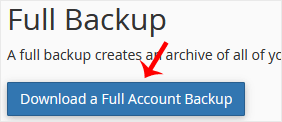
Step 4: Under Generate a Full Backup, fill in the following details:
- Backup Destination: Select
Remote FTP Server - Email Address: Enter your email to receive a completion notification
- Remote Server: Enter your FTP hostname or IP (e.g.,
ftp.example.com) - Remote User: Your FTP username
- Remote Password: Your FTP password
- Port: Enter the FTP port (typically
21) - Remote Dir: The destination folder on the remote server (e.g.,
/home/username/backupfolder/)
Step 5: After entering the details, click on Generate Backup.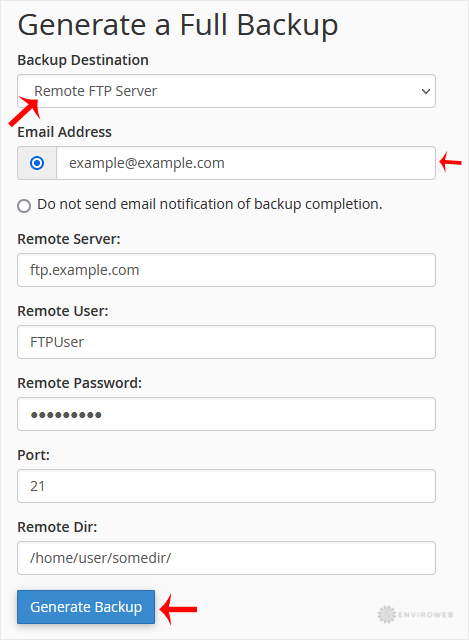
Once complete, your full backup will be transferred to the remote FTP server. Keep in mind that depending on the size of your website and network speed, this process may take several minutes to complete.
