

Restoring a partial backup in cPanel is useful when you want to recover specific areas of your hosting account, such as your home directory, email forwarders, or databases. This guide will walk you through the process using the Backup Wizard.
Note: Restoring a partial backup will overwrite any existing data in the selected area. Make sure you do not need the current contents before proceeding.
Step 1: Log in to your cPanel account.
Step 2: In the Files section, click on Backup Wizard.

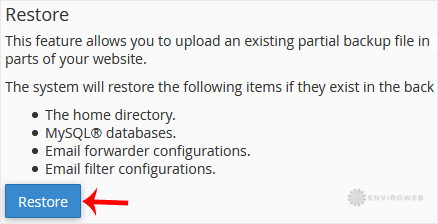
Step 3: Under the Backup/Restore section, click on Restore.
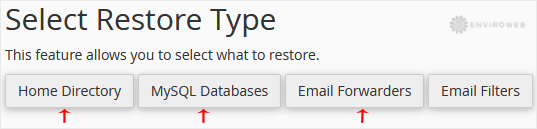
Step 4: Under Select Restore Type, choose the area you'd like to restore. This may include:
- Home Directory
- MySQL Databases
- Email Forwarders
- Email Filters
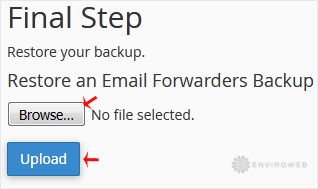
Step 5: Click Browse, select the backup file from your computer, and then click Upload to begin the restoration process.
Once complete, your selected data will be restored to your hosting account. Be sure to check that everything is working correctly after the restore finishes.
