What is WordPress?

WordPress is a widely used open-source content management system (CMS) that allows you to build and manage websites or blogs with ease. It powers millions of websites around the world and offers a wide range of plugins and themes, making it suitable for everything from simple personal blogs to complex business sites and online shops.
Softaculous helps you install web applications very easily. Please follow the steps below to install WordPress:
Step 1. Log in to your cPanel account.
Step 2. In the Software section, click on Softaculous Apps Installer.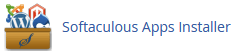
Step 3. You will be redirected to the Softaculous interface.
Step 4. On the left-hand menu, go to the Blogs category and click on WordPress.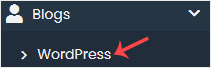
Step 5. Click on Install.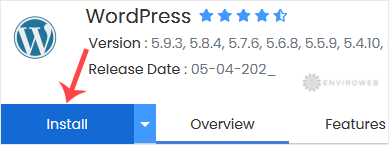
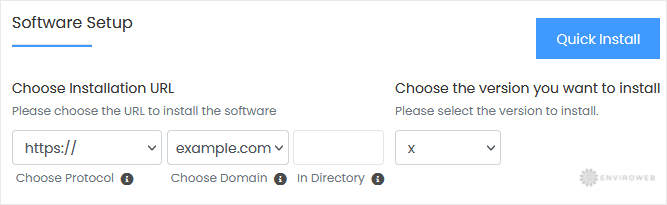
Step 6. Under Software Setup:
- Choose Installation URL: Select your desired domain and protocol. Leave the “In Directory” field empty to install on the root domain (e.g. example.com).
- Choose Version: Leave it as default unless you have a specific requirement.
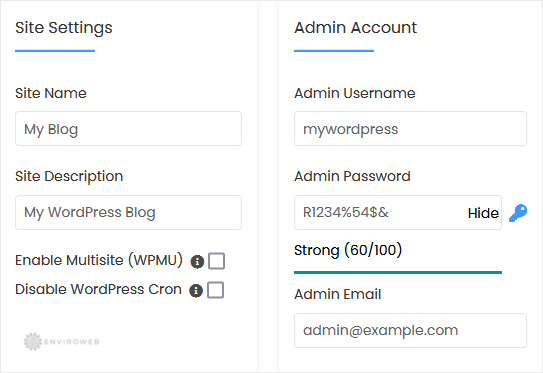
Step 7. Under Site Settings:
- Site Name: Enter your site name, such as "My First Website".
- Site Description: Add a short description for your site.
- Enable Multisite: Leave this disabled unless you require WordPress multisite functionality.
Step 8. Under Admin Account:
- Admin Username: Choose a secure username (avoid “admin”).
- Admin Password: Use a strong password.
- Admin Email: Enter a valid admin email address.
Note: Save your username and password somewhere safe — you’ll need them to log in to your WordPress admin area later.
Step 9. Choose Language: Select the language you want WordPress to use.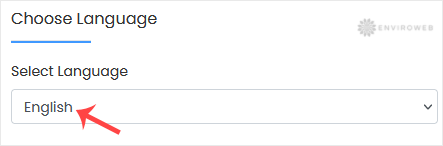
Step 10. Select Plugin(s): Optionally, choose any plugins you want pre-installed.
Step 11. Advanced Options: Leave these settings unless you want to customise the database name or configure automated backups (note: backups can take up significant storage).
Step 12. Select Theme: Choose a WordPress theme if desired. If not, the default theme will be used.
Scroll down and click on Install to begin the installation.