

The Enviroweb dashboard includes the functionality to invite other users to your account and grant them unique permissions and levels of access.
This functionality is great if you want to invite team members and only give them access to specific elements of your account and products. e.g. Support tickets, billing or domain name areas of the dashboard.
How to Invite Additional Users
1. When logged in to your dashboard, navigate to the top right hand corner of the screen and select the account dropdown.
2. Select User Management
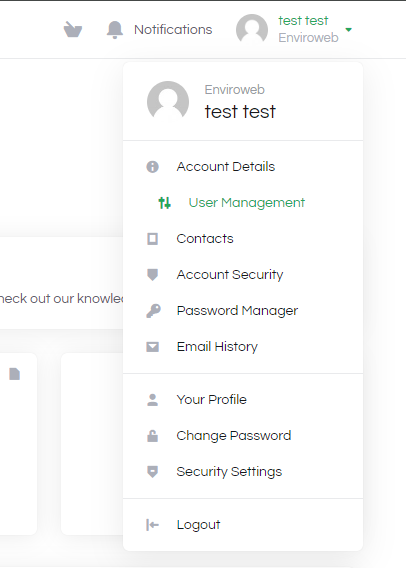
3. When on the User Management page, select Invite New User by clicking the green button.
4. Enter the email address of the user you would like to invite.
5. Select between "All Permissions" or "Choose Permissions"
6. In the scenario of the example screenshot, we're inviting a member of our technical team to have access to our services, domains and support tickets but restricting access to prevent them from accessing billing details etc.
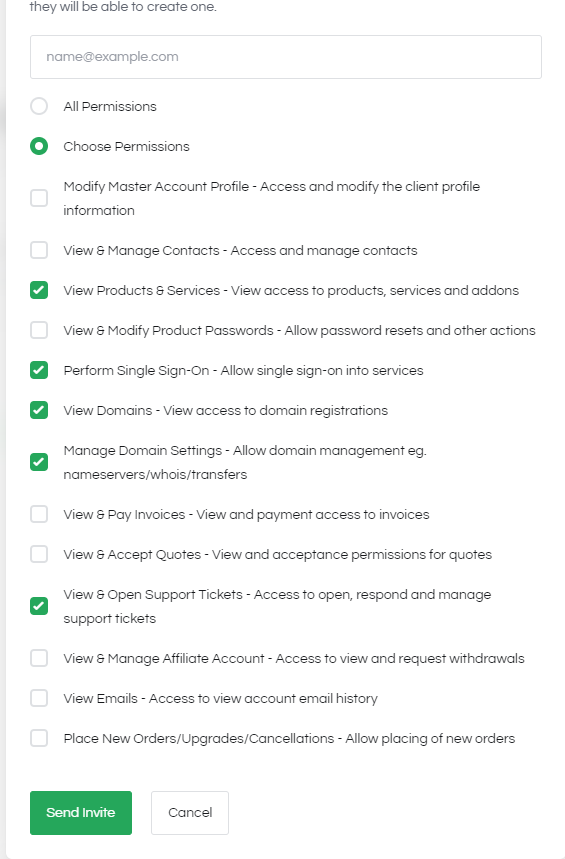
7. Once you select Send Invite you will be able to see in the User Management screen when it has been accepted. (Note: Invites may end up in the recipient's junk folder)
8. Once an invited user has accepted the invite, they will need to select "Register", fill out their details and once submitted they will be granted access to your dashboard. (Note: All invited users will need to set up 2 factor authentication to access the dashboard)
9. You can update an invited user's permissions at any time from the user management screen.
