What is PivotX?

PivotX is a flexible and easy-to-use blogging tool and content management system (CMS). It is suitable for both simple blogs and complex websites, offering support for multiple authors, categories, templates, and more. PivotX stores content as flat files or in a database, giving users the choice between speed and scalability.
Softaculous helps you install web applications very easily. Please follow the steps below to install PivotX:
Step 1. Log in to your cPanel account.
Step 2. In the Software section, click on Softaculous Apps Installer.
Step 3. cPanel will redirect you to the Softaculous interface.
Step 4. On the left-hand side, locate the Blogs category. Click on it and then select PivotX.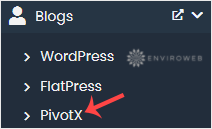
Step 5. Click on Install.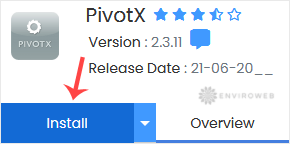
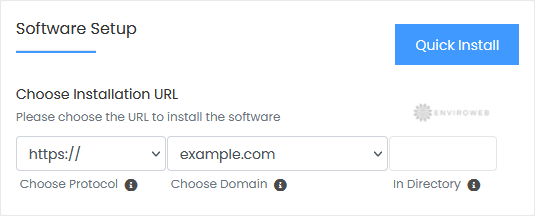
Step 6. Under the Software Setup section:
- Choose Installation URL: Select the domain and protocol you want to install PivotX under. If you want it in a subfolder (e.g., example.com/blog), enter that directory in the "In Directory" field. Leave blank to install to the root.
Step 7. Under the Site Settings section:
- Site Name: Enter the name of your website or blog.
Step 8. Under the Admin Account section:
- Admin Username: Choose a unique username (avoid using “admin” for security reasons).
- Admin Password: Choose a strong password.
- Nickname: Set a nickname for the admin user (optional but recommended).
- Admin Email: Provide your email address for admin notifications and recovery.
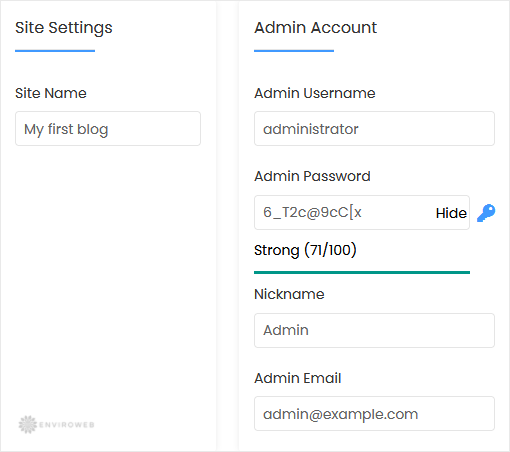
Note: Save your admin username and password securely. You will need them to log in to your PivotX dashboard.
Step 9. Choose Language: Select your preferred language. The default is English.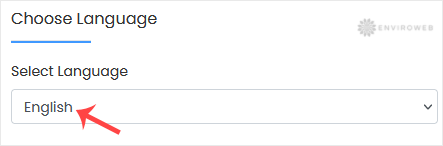
Step 10. Advanced Options: These settings can be left as-is unless you want to rename your database or configure automated backups. Be aware that backups consume disk space.
Finally, scroll to the bottom of the page and click on Install to complete the setup.