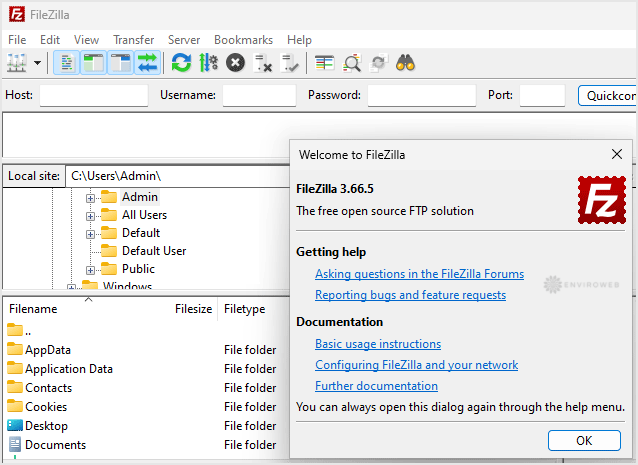
FileZilla is a free and reliable FTP client that makes it easy to connect to your hosting account and manage your website files. If you're using a Windows operating system, follow these steps to download and install FileZilla.
Step 1: Download the FileZilla FTP Client installer from the official website:
https://filezilla-project.org/download.php?show_all=1
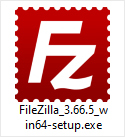
Step 2: Once downloaded, double-click the FileZilla setup file to begin installation. If you see a security warning, review the prompt and click Run to proceed.
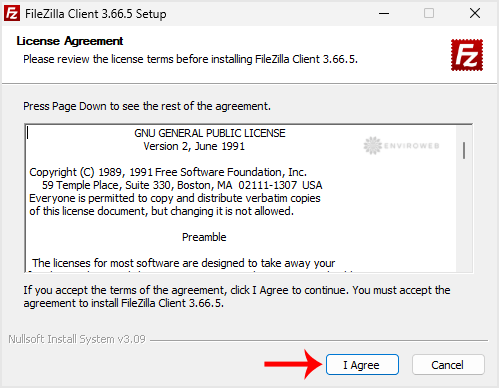
Step 3: Read and accept the License Agreement to continue with the installation.
Step 4: Click Next through the setup steps until you reach the Install button. Click Install to begin installation.
Step 5: The setup will install FileZilla on your computer. Once complete, click Finish to close the installer.
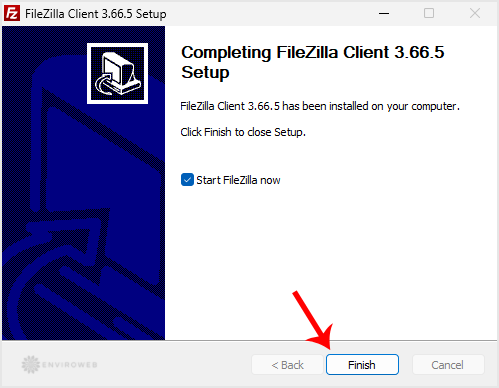
Congratulations! FileZilla is now installed on your Windows computer. You can launch it from your Start menu or desktop shortcut to begin managing your FTP connections.