

You can download files from your website to your local computer using the FileZilla FTP Client. This is useful for creating backups or editing files offline.
Step 1: Open the FileZilla FTP Client on your computer.
Step 2: Enter your FTP login details and click Quickconnect to connect:
- Host: ftp.example.com or example.com
- Username: Your cPanel or FTP username
- Password: Your cPanel or FTP password

Step 3: Once connected, browse the right-hand side (Remote site) to locate the files or folders you want to download.
Use the CTRL key on your keyboard to select multiple files or directories if needed.
Step 4: Right-click on the selected files or folders and choose Download from the context menu.
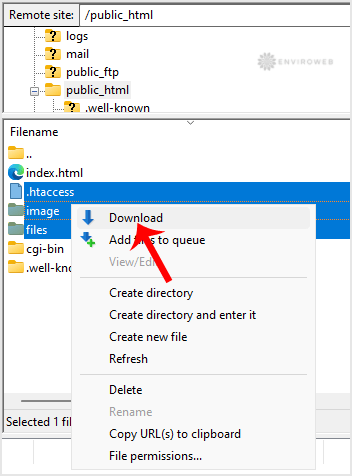
FileZilla will begin transferring the files to your local computer. You can monitor the progress in the queue section at the bottom of the FileZilla window.
Once the transfer is complete, you will find your downloaded files in the selected folder on the left-hand side under Local site.
