

Using an FTP client like FileZilla is one of the most convenient ways to manage your website files. This method allows you to upload, download, and edit files directly on your server without needing to use the cPanel File Manager.
Step 1: Open the FileZilla FTP Client on your computer.
Step 2: Enter your FTP connection details in the top bar:
- Host: Enter your domain name (e.g.
ftp.example.comorexample.com) - Username: Your FTP account username (or your cPanel username if using the default root FTP account)
- Password: The FTP account password
- Port: Leave blank or enter
21(default FTP port)

Step 3: Click on Quickconnect to initiate the connection. FileZilla will connect to your server, and you’ll see your local files on the left and your website’s files on the right.
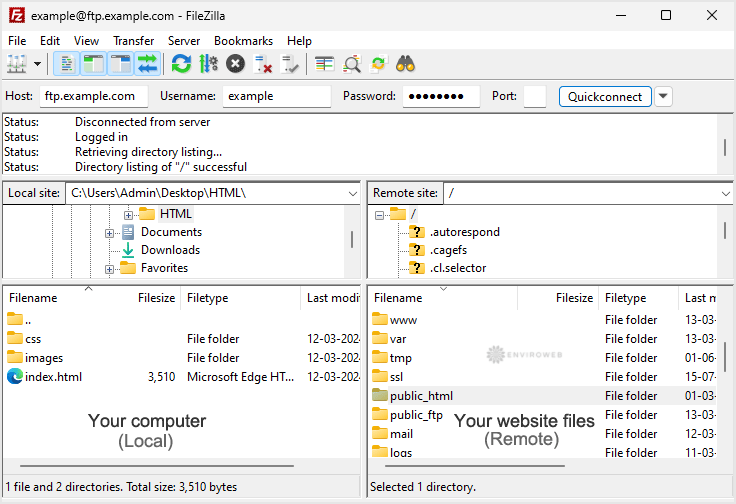
You can now upload, download, rename, and delete files directly on your website using FileZilla.
