

You can easily create or delete directories (folders) on your website using the FileZilla FTP Client. This is helpful for organizing your files or removing unused folders directly from your remote server.
Step 1: Open the FileZilla FTP Client on your computer.
Step 2: Enter your FTP connection details and click on Quickconnect to connect to your server:
- Host: ftp.example.com or example.com
- Username: Your FTP or cPanel username
- Password: Your FTP or cPanel password

Step 3: Navigate to the folder where you want to create a new directory. For example, to create a folder inside public_html, double-click on that directory to open it.
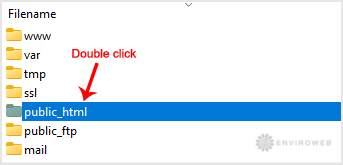
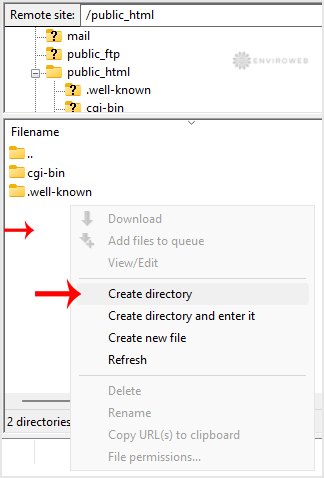
Step 4: Right-click anywhere in the remote directory (on the right-hand side of the FileZilla window), and select Create directory.
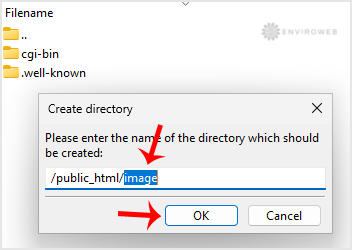
Step 5: Enter the name of the new directory, such as images or assets, and press Enter.
Step 6: Your new directory will appear in the list. Double-click on it to open and start using it.
How to Delete or Remove a Directory
Step 1: Right-click on the directory you want to delete in the remote site area.
Step 2: Choose Delete from the context menu and confirm with Yes when prompted.
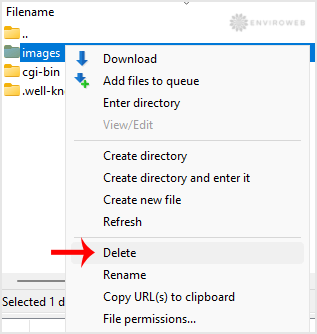
You can use this same process to remove any file or folder from your website.
