

How to Set Up an Email Autoresponder in cPanel
If you're going on holiday or will be unavailable for a few days or more, you can configure an autoresponder to automatically reply to emails. This is useful for letting senders know when they can expect a response, or to provide alternative contact details during your absence.
Step 1: Log in to your cPanel account.
Step 2: In the Email section, click on Autoresponders.
Step 3: Click on Add Autoresponder.
Step 4: Fill out the autoresponder settings:
- Interval: The number of hours to wait before sending another reply to the same email address.
- Email: Enter the user part of the email (e.g. "support" for [email protected]).
- Domain: Select the appropriate domain from the drop-down list.
- From: The name to display in the "From" field of the reply.
- Subject: The subject of the automatic reply (e.g. "Out of Office", "I'm on holiday", etc.).
- Body: The main message of your auto-reply. You can write a simple message like:
Thank you for your email. I’m currently away and will respond as soon as possible upon my return.
Step 5: Set the start and stop time for the autoresponder.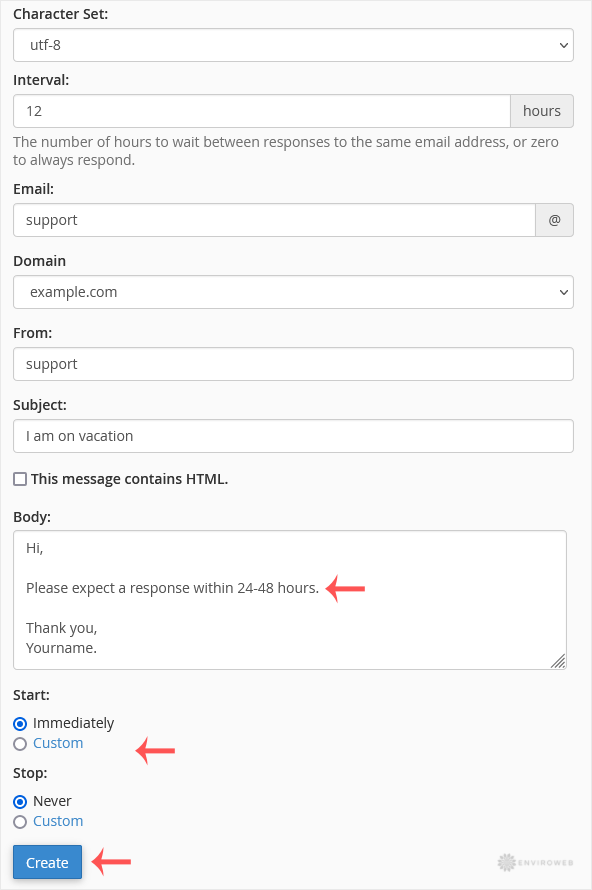
Step 6: Click Create to activate the autoresponder.
How to Remove an Autoresponder
Step 1: In the Email section of cPanel, click on Autoresponders.
Step 2: Locate your active autoresponder under the Current Autoresponders list.
Step 3: Click on Delete next to the email address.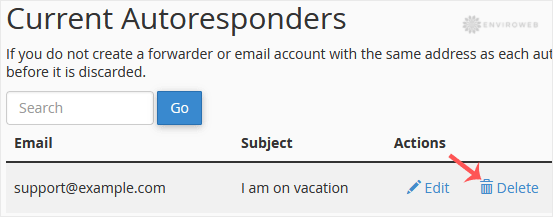
Step 4: Confirm by clicking Delete Autoresponder.
