

Spam emails can be frustrating and difficult to eliminate entirely. However, cPanel provides built-in tools that allow you to filter, discard, or redirect unwanted messages to a specific folder. One effective method is creating a user-level email filter, which applies rules to individual email accounts.
How to Create a User-Level Email Filter
Step 1: Log in to your cPanel account.
Step 2: In the Email section, click on Email Filters.
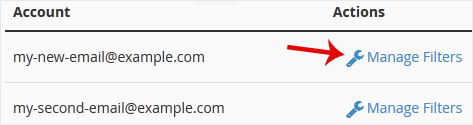
Step 3: Under Filters by Users, find the email account you'd like to apply the filter to and click Manage Filters.
Step 4: Click on Create a New Filter.
Step 5: Enter a name for the filter in the Filter Name field.
Step 6: Configure the filtering rule:
- In the first drop-down, select Body.
- In the second drop-down, select Contains.
- In the input field, enter the keyword you'd like to filter, such as
Lottery.
Step 7: From the Actions drop-down, choose Discard Message to automatically delete the filtered emails.
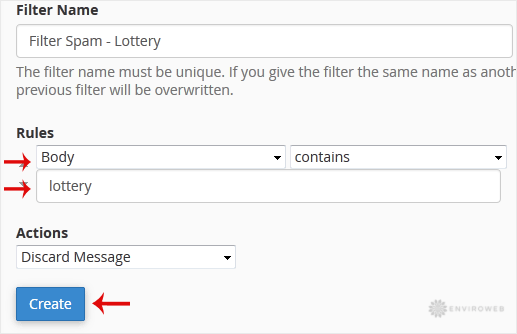
Step 8: Click on Create to save your filter.
Your filter is now active. You can return to manage or update your filters at any time by repeating the steps above.
