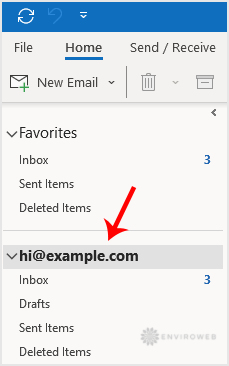
You can set up your cPanel-based email account in Microsoft Outlook 2021 to easily manage your emails from your desktop. This guide walks you through the steps to configure your email using IMAP, ensuring your messages stay synchronised across devices.
Step 1: Open Outlook 2021.

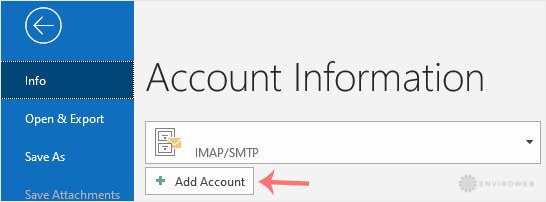
Step 2: Navigate to File > Info, then click on Add Account.
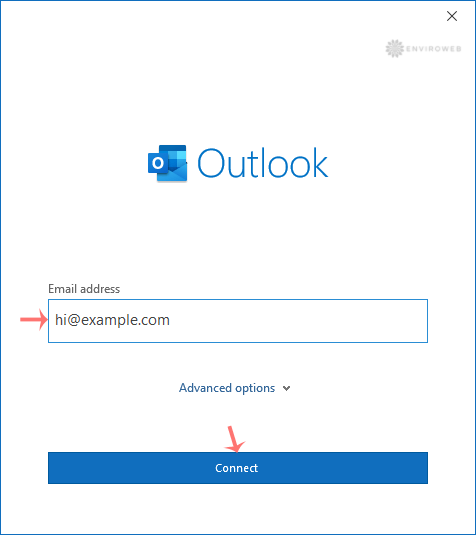
Step 3: Enter your full email address (e.g., [email protected]) and click Connect. If you're not prompted with manual setup options, proceed to Step 6.
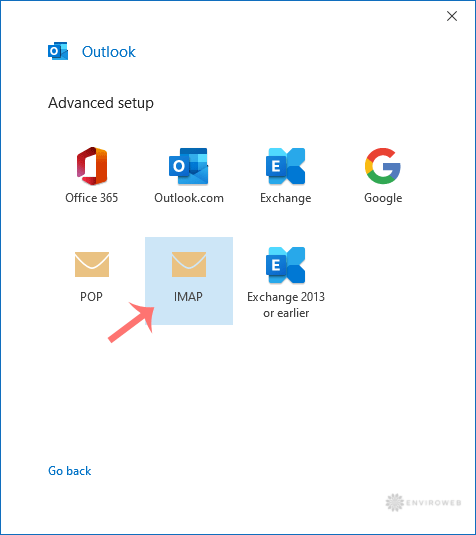
Step 4: In the Advanced Setup window, select IMAP as the account type.
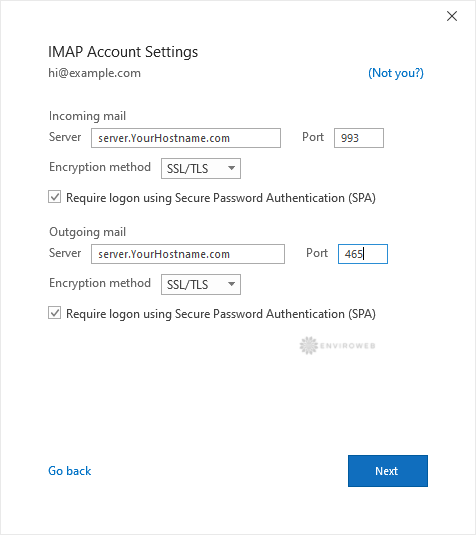
Step 5: Fill in the IMAP server details. Replace the placeholder hostname with your server's actual hostname. Ensure the port settings are correct:
- Incoming Mail (IMAP): Usually
993with SSL - Outgoing Mail (SMTP): Usually
465or587with SSL/TLS
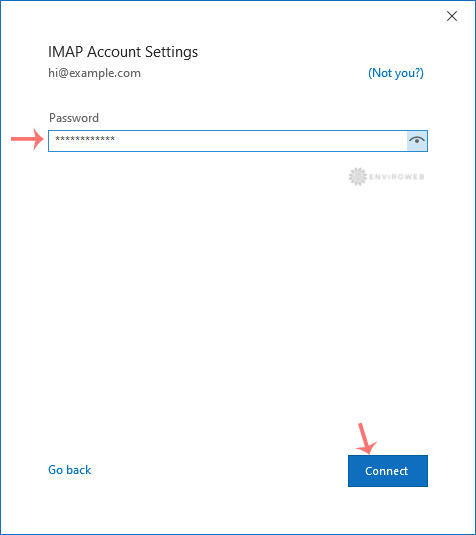
Step 6: Enter the email account password when prompted and click Connect.
Step 7: Once connected, click on Done to finish the setup.
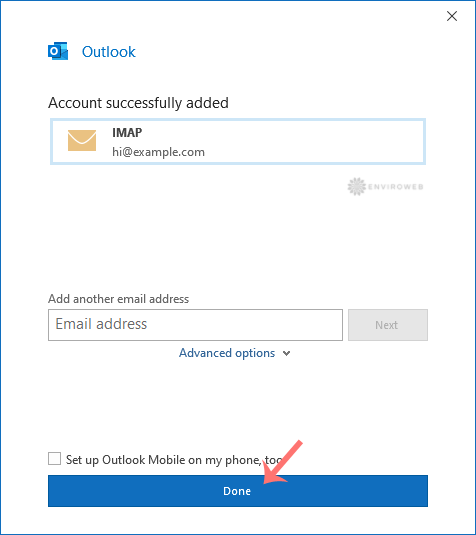
You can now access and manage your newly-added email account from the left sidebar under the Home tab in Outlook.