

Email filters in cPanel allow you to automatically manage incoming messages by setting rules for specific email accounts. If you’ve already created filters and need to make changes, follow the steps below to edit them.
Step 1: Log in to your cPanel account.
Step 2: In the Email section, click on Email Filters.
Step 3: Under the Filters by Users section, find the email account associated with the filter you want to edit. Click on Manage Filters next to that account.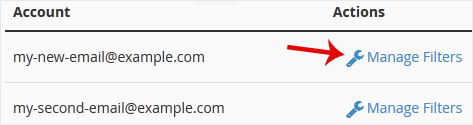
Step 4: Locate the filter you want to change under Current Filters and click on Edit.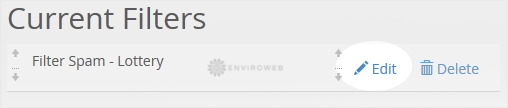
Step 5: Modify the filter rules or actions as needed. You can adjust conditions like subject, sender, body content, and choose actions such as discard, redirect, or deliver to folder.
Step 6: When you’re happy with the changes, click on Save to apply the updated filter.
Your email filter has now been updated successfully.
