

This guide explains how to use the client area control panel to power on, power off, or reboot your VPS server.
To Reboot your server, follow these steps:
1. Login to your client area dashboard and navigate to the VPS service you would like to perform the actions on.
2. Once in the VPS details screen you will be able to see the "Service Actions" section.
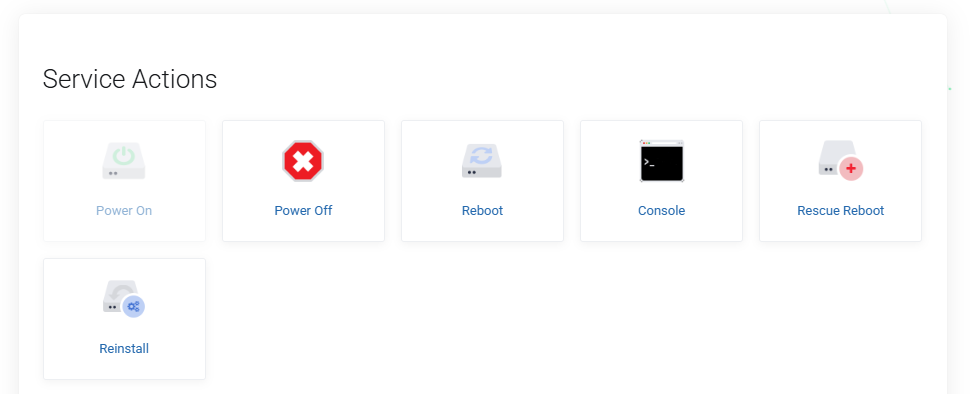
3. Click the Reboot button. Once clicked you'll be prompted to confirm the action. This is to prevent accidental reboots from occurring.
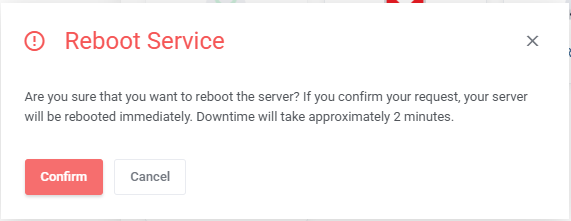
4. Once confirmed the reboot process will initiate. This process can take up to 5 minutes to complete.
To Power On / Off the server, follow these steps:
1. Login to your client area dashboard and navigate to the VPS service you would like to perform the actions on.
2. Once in the VPS details screen you will be able to see the "Service Actions" section.
3. If the server is running, the Power On option will be greyed out and cannot be clicked. To Power Off the server click the power off button, before the server is powered off you'll be asked to confirm the action to prevent this happening accidentally. Once confirmed, the power off process will begin. (note this process can take 1-5 minutes to fully complete. ensure to refresh the page regularly to get the latest status of the server.)
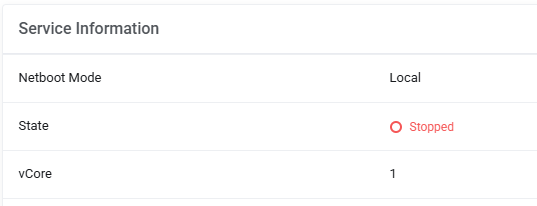
4. Once the stop process has completed and you've refreshed the page, the state will now show as Stopped in the service information section and the Power On button will now be available to use.
5. To Power On the server, repeat the same steps as above by clicking the Power On button instead.
If you encounter any issues with Powering On, Powering Off or Rebooting the server, please contact support.
