

This guide explains how to create basic firewall rules for your VPS using the client area control panel. The firewall allows you to define what traffic is allowed or blocked from reaching your server based on protocol, port, IP address, and other parameters.
Disclaimer:
Your VPS firewall is managed entirely by you. Enviroweb provides unmanaged VPS services, and we are not responsible for misconfiguration or access issues caused by incorrect firewall rules. Use caution when creating DENY rules or blocking common ports such as SSH or HTTP. A maximum of 20 firewall rules can be created per IP address. If you exceed this limit, you will need to delete or modify existing rules to continue.
To create firewall rules for your VPS, follow these steps:
1. Login to your client area dashboard and navigate to the VPS service you would like to perform the actions on.
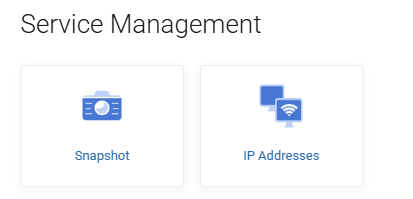
2. Select IP Addresses from the Service Management section of your VPS control panel. This will display the IP addresses assigned to your VPS
3. Ensure the switch is enabled for the firewall for the IP address you'd like to modify
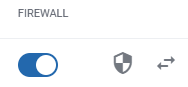
4. Once the switch is enabled, select the Shield icon next to the switch.
5. Once the next page loads, click + Add Rule
6. If you are familiar with setting up firewall rules you can proceed to add in the required rules.
Definitions & Firewall Rule Fields Explained
This next section will include an explanation of the firewall rule fields available and what they mean.
1. Action
-
ALLOW – Permit the traffic defined by this rule
-
DENY – Block the traffic defined by this rule
For example, you may wish to create a firewall rule to Allow only a certain set of IP addresses to connect to the port your cPanel or Plesk is on.
2. Protocol
| Protocol | Description | Common Use Cases |
| TCP | Transmission Control Protocol. A reliable, connection-based protocol used by most internet services. | Allow access to web servers (ports 80 and 443), SSH (port 22), FTP (port 21) |
| UDP | User Datagram Protocol. A faster, connectionless protocol used for lightweight communication. | Allow DNS (port 53), game server ports, or streaming services |
| ICMP | Internet Control Message Protocol. Used for sending diagnostic information between devices. | Allow ping and traceroute tools to test server reachability |
| IPv4 | Internet Protocol version 4. Used to define broad rules for all IPv4 traffic regardless of transport protocol. | Rarely needed. Could be used to block all IPv4 traffic from a specific IP range |
| AH | Authentication Header. Provides packet-level integrity and authentication. | Advanced enterprise-level traffic validation (typically not required for standard services) |
| ESP | Encapsulating Security Payload. Used for encrypted data transport at the IP level. | May be used by some security software or network appliances (not common in typical web hosting use) |
| GRE | Generic Routing Encapsulation. Used to tunnel certain types of packets over IP. | May be used by advanced routing systems or proprietary monitoring tools (not commonly needed) |
3. Priority
The priority set for the rule determines in which order it will be processed.
e.g. a rule with a priority of 1 will be processed before a rule with the priority of 2. The highest priority a rule can be set as is 0
4. Source
Allows you to define a specific IP or CIDR range allowed or denied
Leave blank to apply the rule to all sources
5. Destination Port
The port of your VPS that the rule effects.
Some common destination ports include:
| Service | Protocol | Default Port(s) |
| SSH (Secure Shell) | TCP | 22 |
| HTTP (Web Server) | TCP | 80 |
| HTTPS (Secure Web) | TCP | 443 |
| FTP (File Transfer) | TCP | 21 |
| SFTP (SSH File Transfer) | TCP | 22 |
| SMTP (Outgoing Mail) | TCP | 25, 587 |
| IMAP (Incoming Mail) | TCP | 143, 993 |
| POP3 (Incoming Mail) | TCP | 110, 995 |
| DNS | TCP/UDP | 53 |
| MySQL Database | TCP | 3306 |
| PostgreSQL Database | TCP | 5432 |
| RDP (Windows Remote Desktop) | TCP | 3389 |
| cPanel | TCP | 2082 (HTTP), 2083 (HTTPS), 2086, 2087 |
| WHM | TCP | 2086 (HTTP), 2087 (HTTPS) |
| Webmail (cPanel) | TCP | 2095 (HTTP), 2096 (HTTPS) |
| Plesk Panel | TCP | 8880 (HTTP), 8443 (HTTPS) |
6. Source Port
This is the port number on the client device sending traffic to your VPS.
-
In most cases, leave this set to 0 (which means “any source port”), unless you have a very specific reason to restrict traffic based on where it's coming from.
-
Source ports are usually dynamically assigned by the client device, so specifying one can unintentionally block legitimate connections.
Use case example:
If you're running a service that only accepts traffic from a known device using a static source port (rare), you could enter it here. Most users should leave this as 0.
7. Fragments
This option refers to packet fragmentation — a networking process where large packets are broken into smaller pieces.
-
Fragmented packets are a normal part of some network traffic, but they can also be used in certain types of attacks.
-
By default, you can leave this unchecked, unless you specifically need to allow fragmented packets for a service that requires them.
Use case example:
If your server or application is rejecting traffic because it's fragmented, and you know it's safe, you may check this box. Otherwise, leave it off.
8. TCP Flags
This option controls which type of TCP traffic the rule applies to — either new connections or ongoing sessions. In most cases this can be left blank for most users.
SYN refers to new incoming connection attempts, such as a client initiating an SSH or HTTP connection.
ESTABLISHED refers to traffic that is part of an already accepted connection, such as responses to outgoing requests or continued communication.
By default, you should use SYN to allow new connections to your server, and ESTABLISHED to allow return traffic from existing or outgoing connections.
Use case example:
Allowing SYN on port 22 will let new SSH sessions in, while allowing ESTABLISHED ensures your server can receive replies from remote services it connects to.
